Quick Git Setup
Fast track Git setup for Saturn Cloud resources
Quick Git Setup for Saturn Cloud
This guide helps you set up Git integration quickly so you can attach repositories to your resources during creation.
1. Set Up SSH Keys (One-Time Setup)
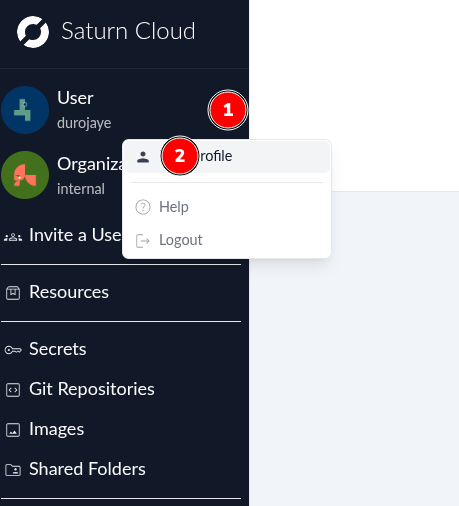
- Go to User Profile → Access Keys in the sidebar
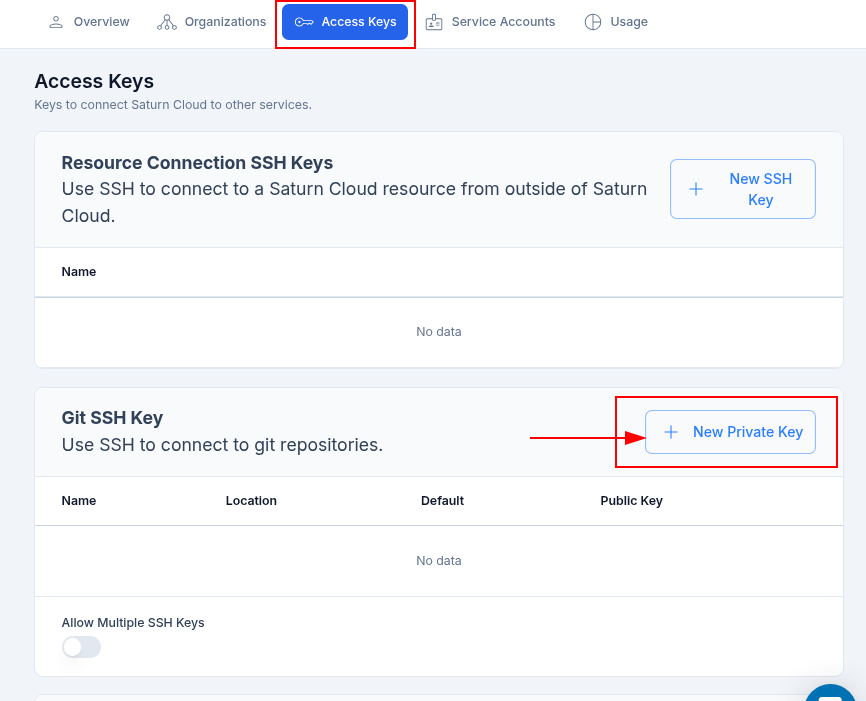
- Find the Git SSH Key section and click the New Private Key button.
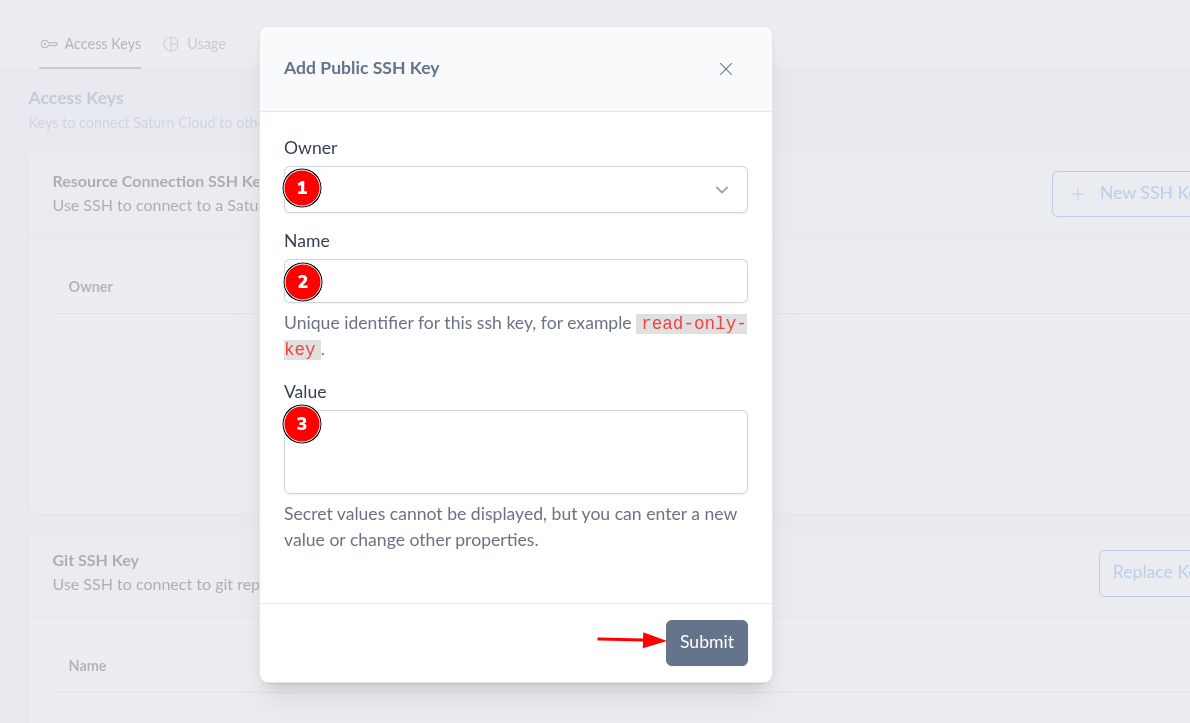
- In the key creation window, choose your preference for Value:
- Saturn Cloud Generated Key: Let Saturn Cloud automatically generate a secure public/private key pair.
- Upload Your Own Key: Paste your own existing private key into the text area.
- Click Submit to save the key.
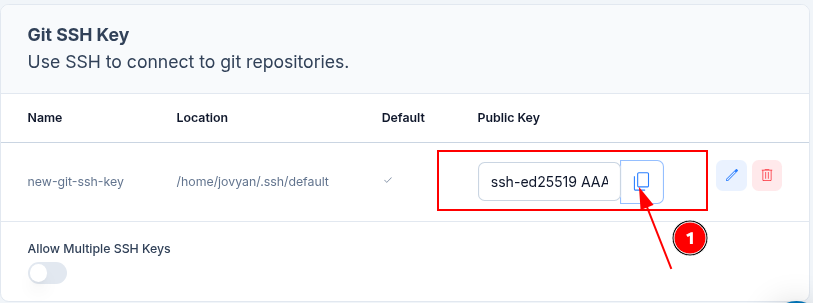
- Copy the displayed public key and add it to your Git host (e.g., GitHub, GitLab, Bitbucket) to authorize access.
2. Add Your Repository to Saturn Cloud
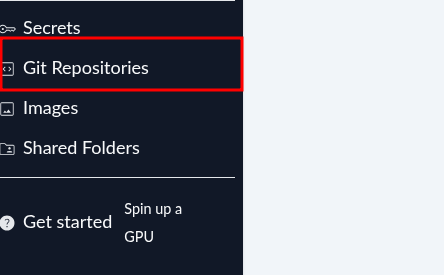
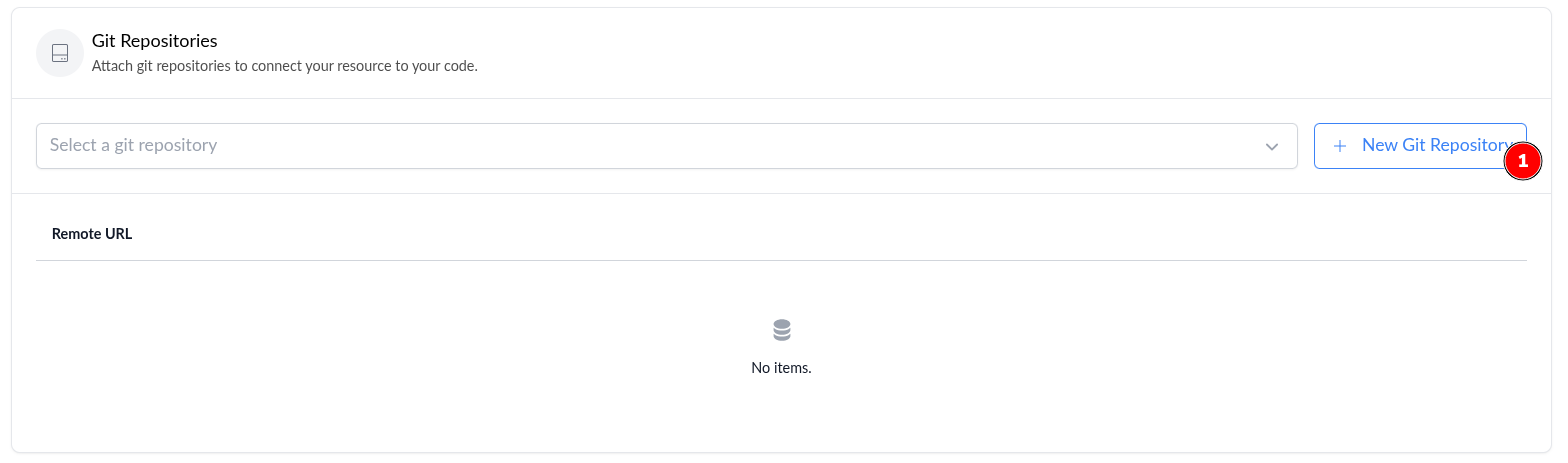
- Go to Git Repositories in the sidebar
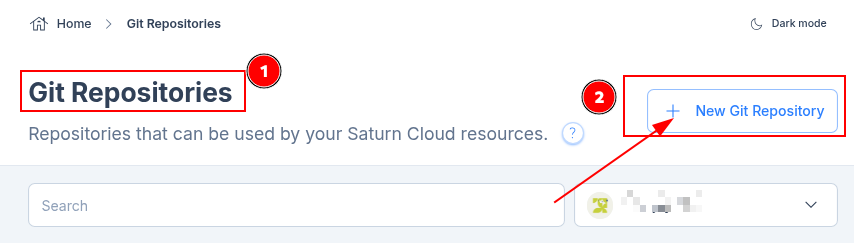
- Click New Git Repository button
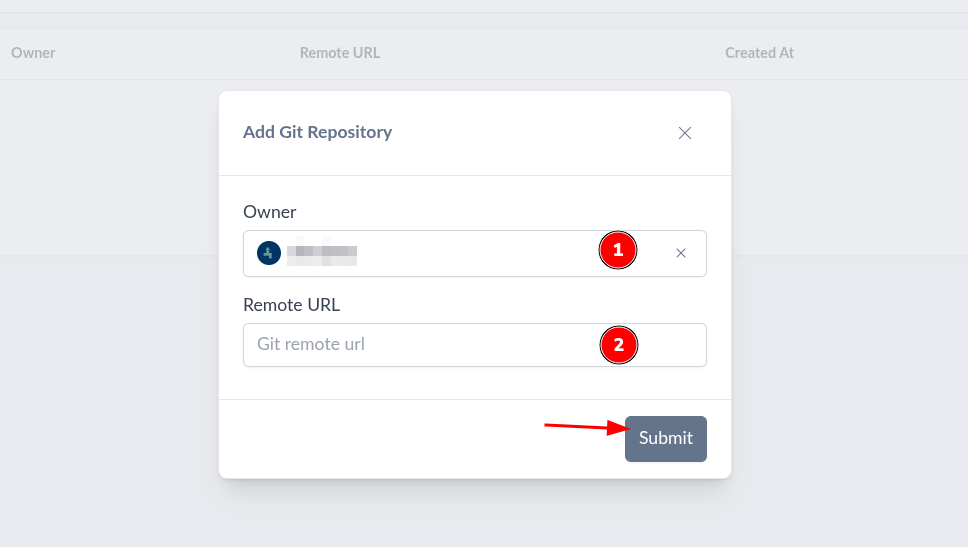
- Enter your repository URL (the same URL you’d use for
git clone) - Click Submit
3. Attach to Your Resource
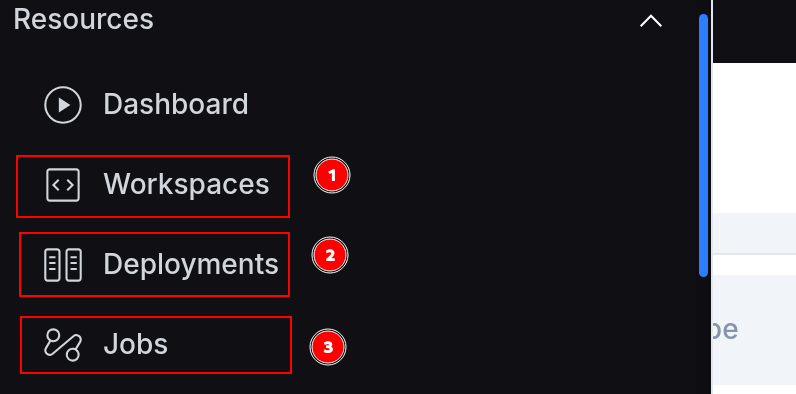
When creating a Jupyter Server or R Server from Workspaces, Deployments, or Jobs:
- In the creation form, find the Details section after completing Instance Size and Resource Type sections.
- Scroll down to the Git repositories section and select your repository from the dropdown
- Click Create Resource
Your code will be automatically cloned when the resource starts!
Need Help?
- Full Git documentation - Complete guide with all options
- GitHub SSH setup - GitHub-specific instructions
- GitLab SSH setup - GitLab-specific instructions