
How to fix import errors in Jupyter Notebook
If you are a data scientist or software engineer who uses Jupyter Notebook, you may have encountered the following error message: “Import error: DLL load failed”. This error can be frustrating, especially if you have successfully imported the same module in a .py file. In this article, we will explain the causes of this error and provide solutions to fix it.
What causes the import error in Jupyter Notebook?
The “Import error: DLL load failed” message occurs when Jupyter Notebook is unable to load a dynamic link library (DLL) required by the module you are trying to import. There are several reasons why this error can occur:
Missing or incompatible dependencies: If a module relies on other libraries, Jupyter Notebook may fail to import it if these dependencies are not installed or are incompatible with your system.
Different Python environments: Jupyter Notebook may be using a different Python environment than the one you used to run the .py file. This can lead to conflicts when importing modules.
Incorrect module path: If the module path is incorrect, Jupyter Notebook will not be able to find the module, leading to an import error.
How to fix the import error in Jupyter Notebook
Here are three solutions to fix the “Import error: DLL load failed” error in Jupyter Notebook:
1. Install missing dependencies
If the module you are trying to import relies on other libraries, make sure these dependencies are installed. You can use the pip command to install missing dependencies. For example, if you are trying to import the numpy module and get the import error, you can install it using the following command:
!pip install numpy
2. Use the same Python environment
To ensure that Jupyter Notebook uses the same Python environment as the .py file, you can activate the environment in Jupyter Notebook. First, activate the environment in your terminal:
source activate myenv
Then, launch Jupyter Notebook from the same terminal:
jupyter notebook
This should ensure that Jupyter Notebook uses the same Python environment as the .py file.
3. Check the module path
If the module path is incorrect, Jupyter Notebook will not be able to find the module and will raise an import error. To check the module path, you can use the sys.path command. This command displays a list of directories where Python looks for modules.
import sys
print(sys.path)
Make sure that the directory containing the module you are trying to import is in the list. If it is not, you can add it using the following command:
sys.path.append('/path/to/module')
Replace /path/to/module with the actual path to the module.
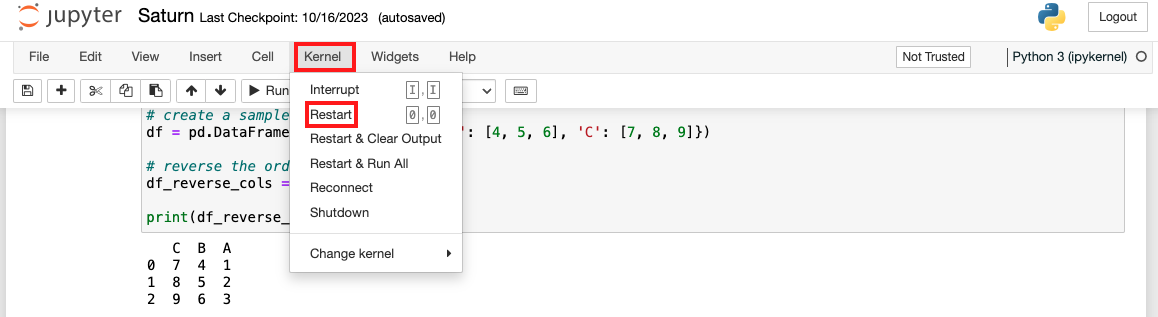
4. Restarting the Kernel
Sometimes, simply restarting the Jupyter Notebook kernel can resolve import issues. Use the restart button in the Jupyter interface.
Conclusion
The "Import error: DLL load failed" error can be frustrating, but it is usually caused by missing or incompatible dependencies, different Python environments, or incorrect module paths. By following the solutions outlined in this article, you should be able to fix the error and import the module successfully in Jupyter Notebook.