OpenClaw is an open-source AI agent gateway that can run behind a Saturn Cloud Deployment and connect to channels such as Telegram and WhatsApp.
This guide uses the OpenClaw Beta Saturn Cloud template. The template reads the settings you provide, installs OpenClaw, and starts the OpenClaw gateway on port 8000.
Prerequisites
- A Saturn Cloud account
- One supported AI provider API key
- A gateway token for the OpenClaw UI
- Optional: a Telegram bot token and Telegram user ID
- Optional: a WhatsApp account you control
Step 1: Create the Deployment from the Template
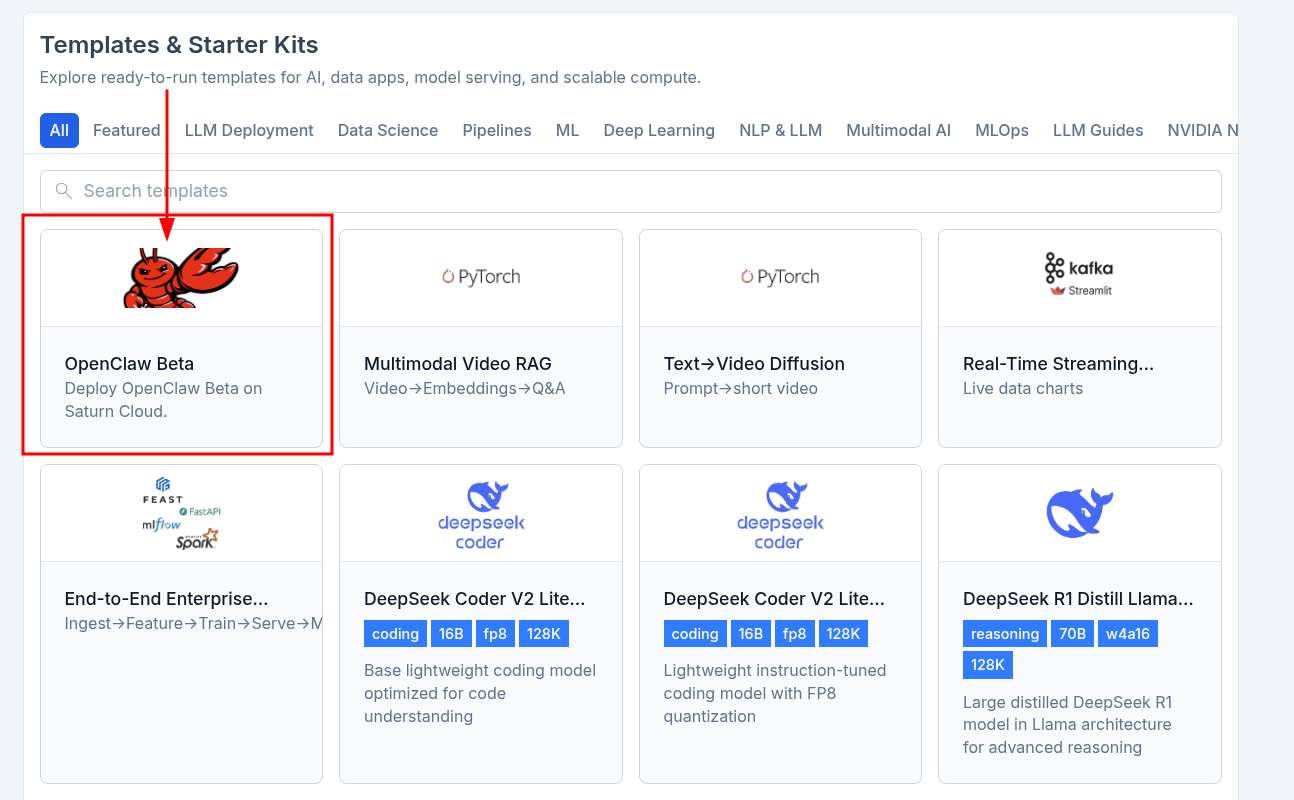
On the Saturn Cloud home page, scroll down to Templates & Starter Kits, find OpenClaw Beta, and select it.
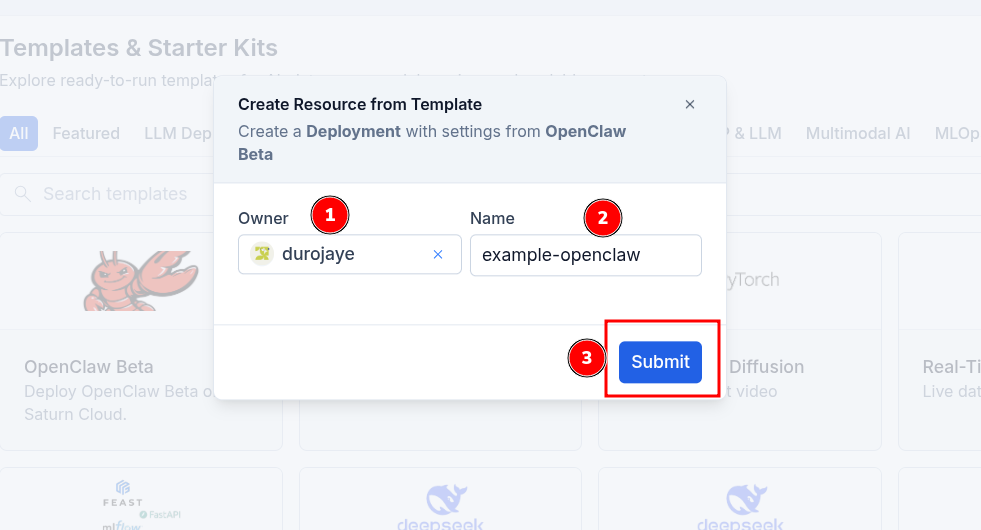
Choose an owner, set a deployment name, then click Submit.
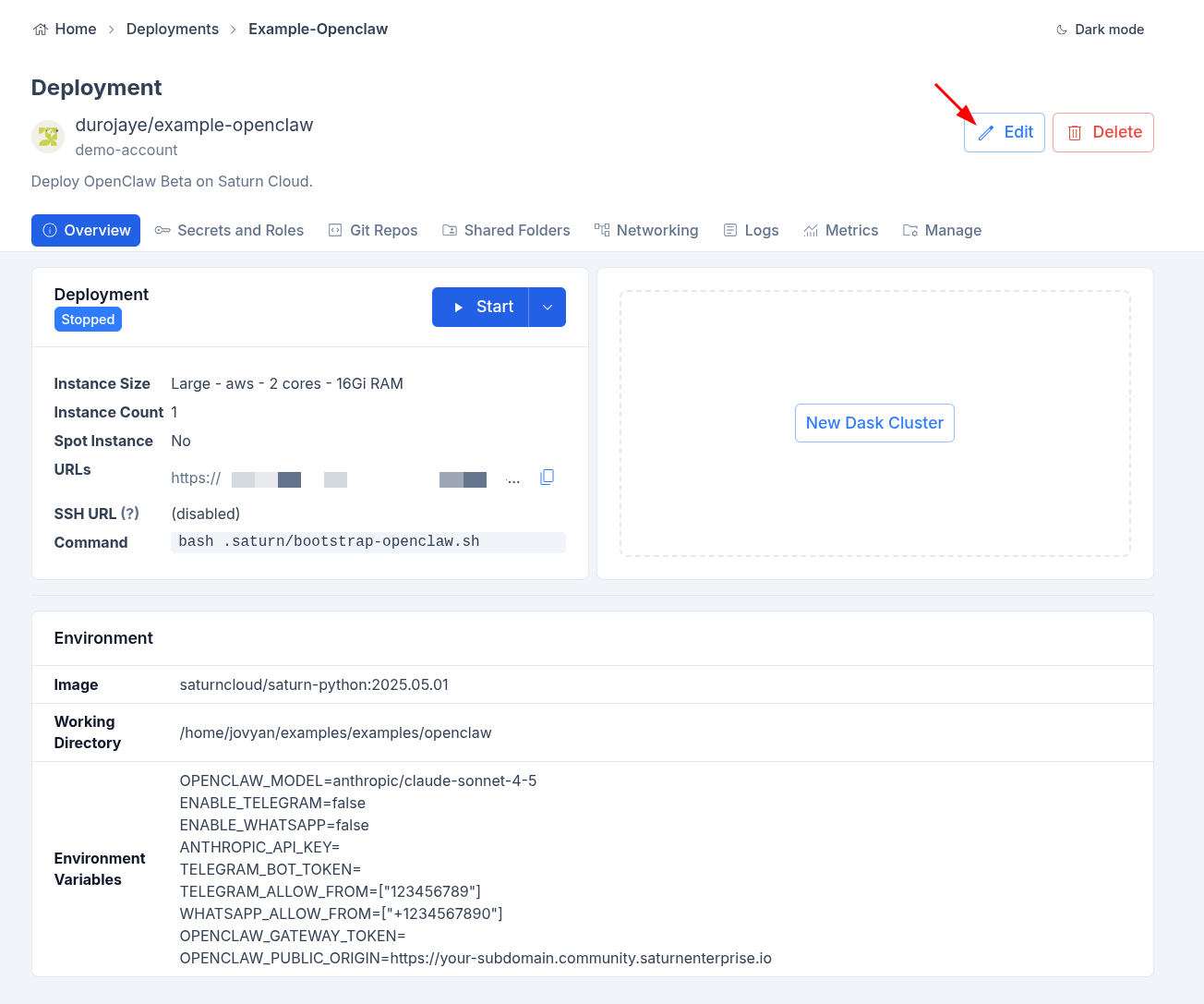
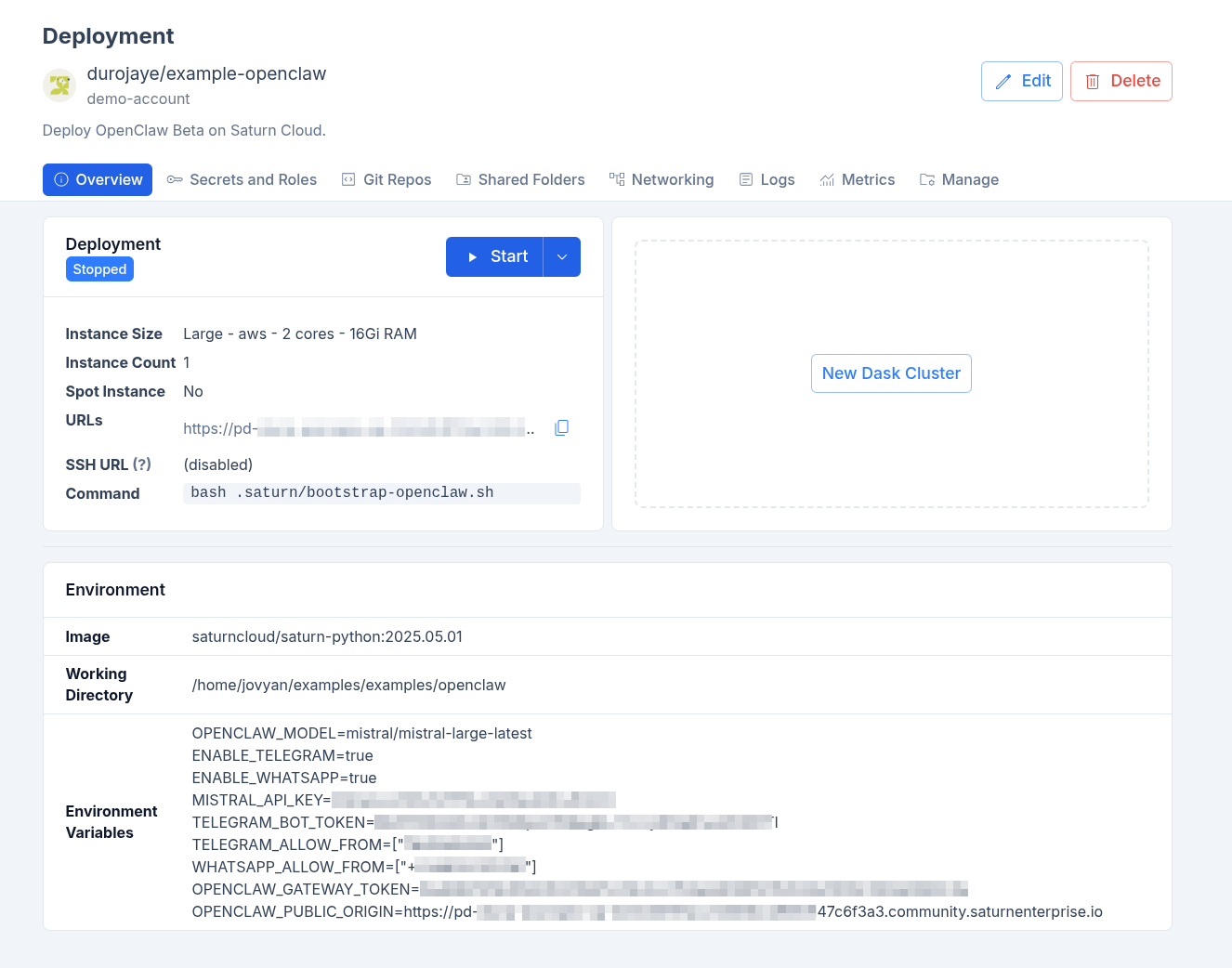
The template creates a Deployment with these defaults:
- Image:
saturncloud/saturn-python:2025.05.01 - Instance size: Large, AWS, 2 cores, 16 GiB RAM
- Working directory:
/home/jovyan/examples/examples/openclaw - Command:
bash .saturn/bootstrap-openclaw.sh
Step 2: Edit the Deployment
Open the new deployment and click Edit.
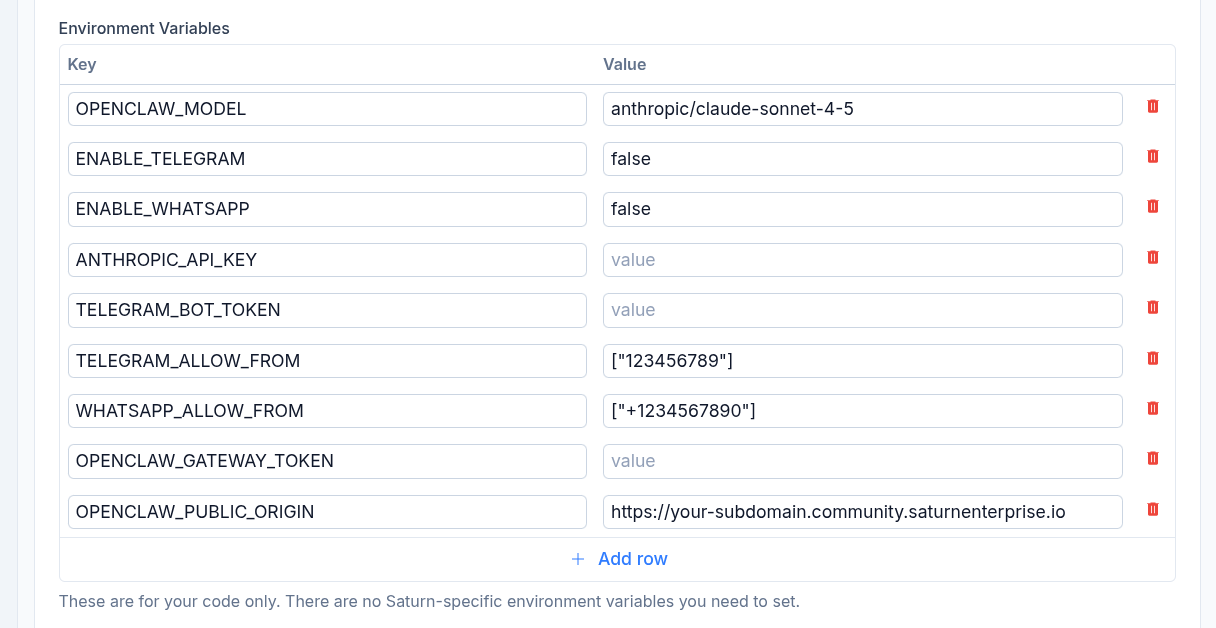
Scroll to the environment variables section. The template includes placeholders for the provider key, gateway token, channel settings, and public origin.
Step 3: Set Required Environment Variables
Run this command in Terminal to create a random gateway token:
openssl rand -hex 32
Set OPENCLAW_GATEWAY_TOKEN to the generated value. You will use the same token when opening the OpenClaw UI.
Set OPENCLAW_PUBLIC_ORIGIN to the exact deployment URL you will open in your browser. Do not include a trailing slash.
You can keep the generated subdomain or change it before starting the deployment.

The public origin should match that subdomain:
OPENCLAW_GATEWAY_TOKEN=YOUR_GATEWAY_TOKEN
OPENCLAW_PUBLIC_ORIGIN=https://your-subdomain.community.saturnenterprise.io
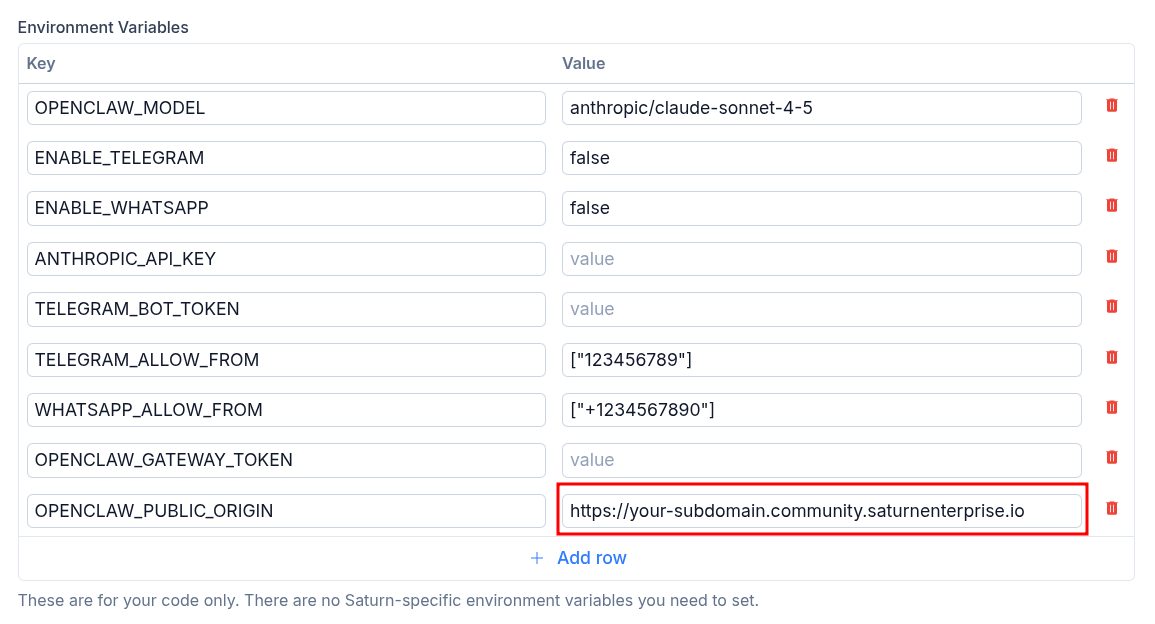
Add only one AI provider API key. OpenClaw uses that key to choose the provider.
| Provider | Environment variable | Example model |
|---|---|---|
| OpenAI | OPENAI_API_KEY | openai/gpt-5.5 |
| Anthropic | ANTHROPIC_API_KEY | anthropic/claude-sonnet-4-5 |
| Gemini | GEMINI_API_KEY or GOOGLE_API_KEY | google/gemini-3.1-pro-preview |
| Mistral | MISTRAL_API_KEY | mistral/mistral-large-latest |
| OpenRouter | OPENROUTER_API_KEY | openrouter/auto |
Use OPENCLAW_MODEL to override the default model for that provider.
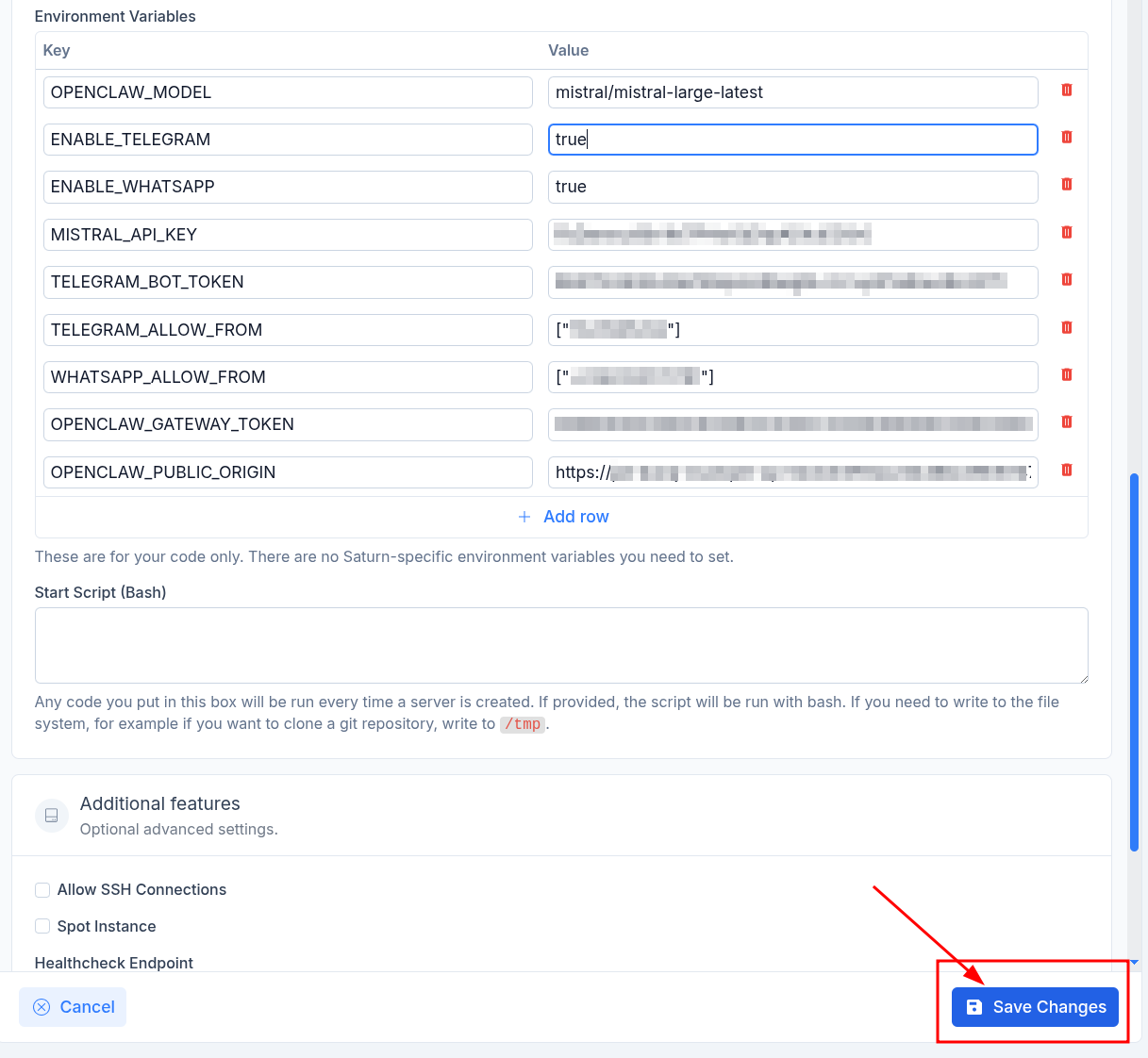
For example, with Mistral:
MISTRAL_API_KEY=YOUR_MISTRAL_API_KEY
OPENCLAW_MODEL=mistral/mistral-large-latest
OPENCLAW_GATEWAY_TOKEN=YOUR_GATEWAY_TOKEN
OPENCLAW_PUBLIC_ORIGIN=https://your-subdomain.community.saturnenterprise.io
Step 4: Configure Optional Channels
The template can run without Telegram or WhatsApp. Configure only the channels you want to use.
Optional: Telegram
To enable Telegram when the deployment starts:
ENABLE_TELEGRAM=true
TELEGRAM_BOT_TOKEN=YOUR_BOT_TOKEN
TELEGRAM_ALLOW_FROM=["123456789"]
TELEGRAM_BOT_TOKEN comes from BotFather. Telegram’s docs explain how to create a bot with /newbot and get the token.
Use TELEGRAM_ALLOW_FROM for the Telegram user ID allowed to message the bot. Keep the square brackets and quotes, for example ["123456789"]. If you do not know your Telegram user ID, message @userinfobot from the account you want to allow.
Optional: WhatsApp
To enable WhatsApp when the deployment starts:
ENABLE_WHATSAPP=true
WHATSAPP_ALLOW_FROM=["+1234567890"]
Use WHATSAPP_ALLOW_FROM for the WhatsApp number allowed to message OpenClaw. Keep the square brackets and quotes, for example ["+1234567890"]. It does not have to be the same account that is linked as the OpenClaw WhatsApp sender.
After setting the values, click Save Changes.
Step 5: Start the Deployment
Return to the deployment overview, confirm the environment variables, then click Start.
Saturn Cloud will prepare the deployment. This can take a few minutes.
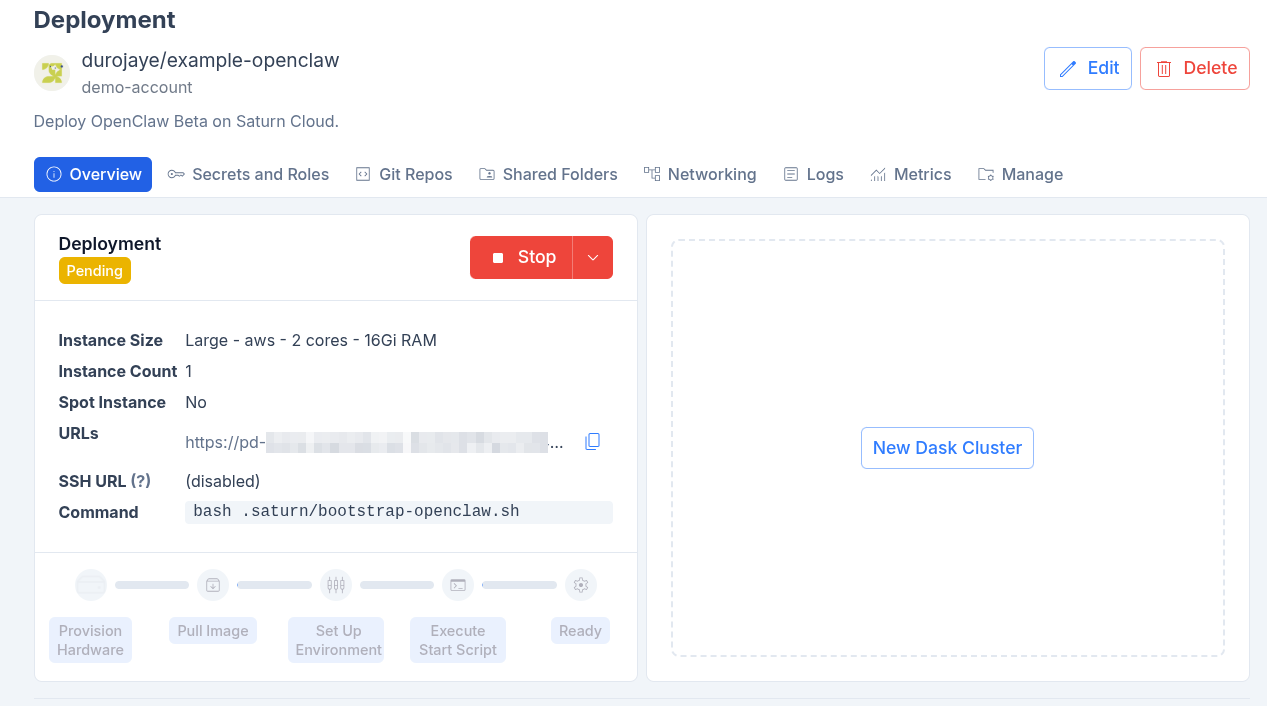
When the deployment is running, wait a few minutes for first-time initialization to finish.
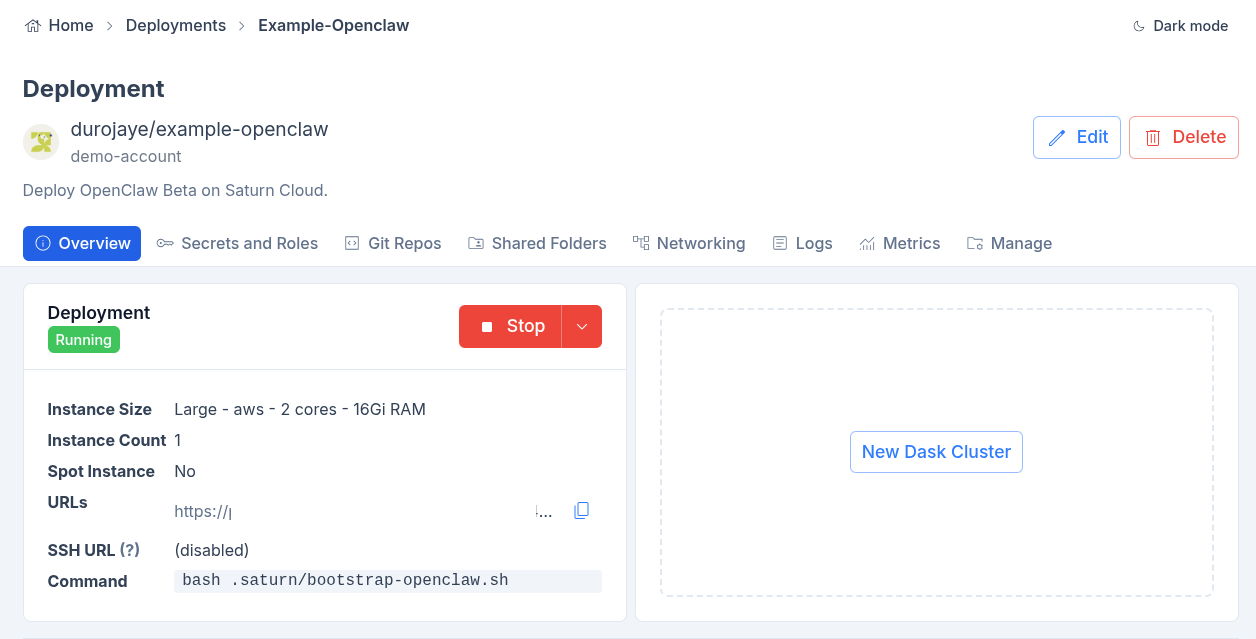
When startup finishes, OpenClaw should be installed, configured, and running.
Step 6: Open the OpenClaw UI
Open the deployment URL from the overview page. Paste the value of OPENCLAW_GATEWAY_TOKEN, then click Connect.
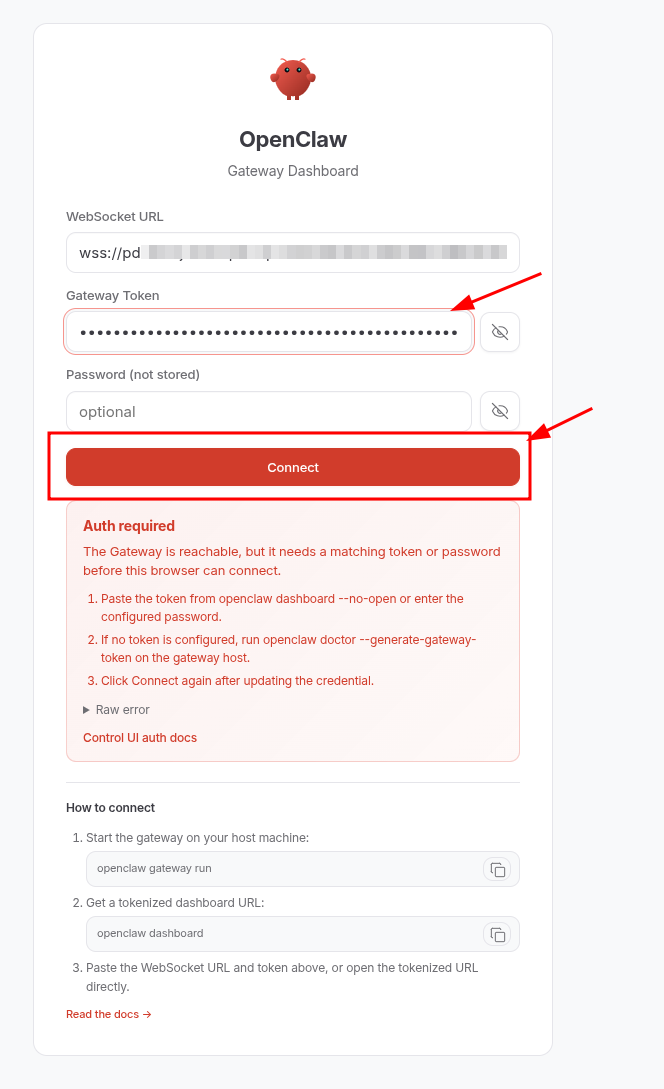
After login, the OpenClaw dashboard should load.
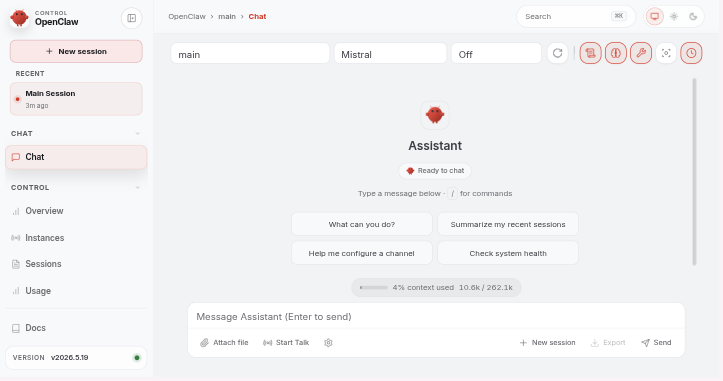
Step 7: Open Channel Settings
Open Settings from the left sidebar.
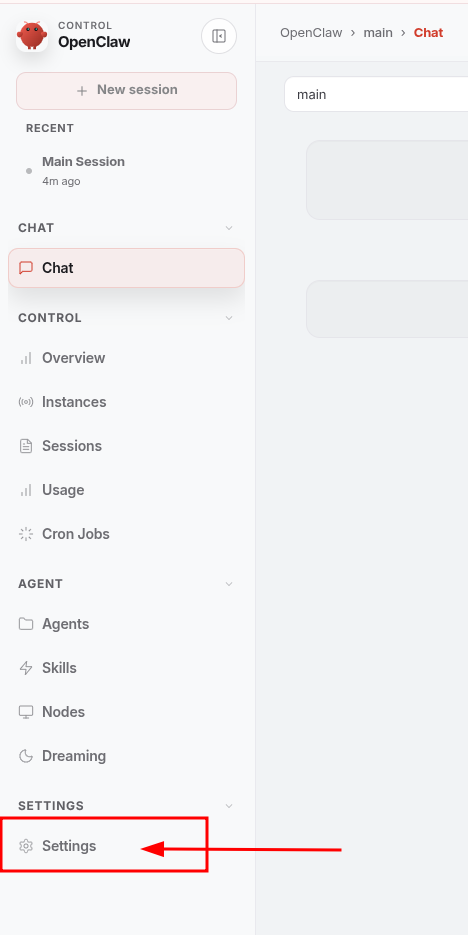
Click the Channels tab.
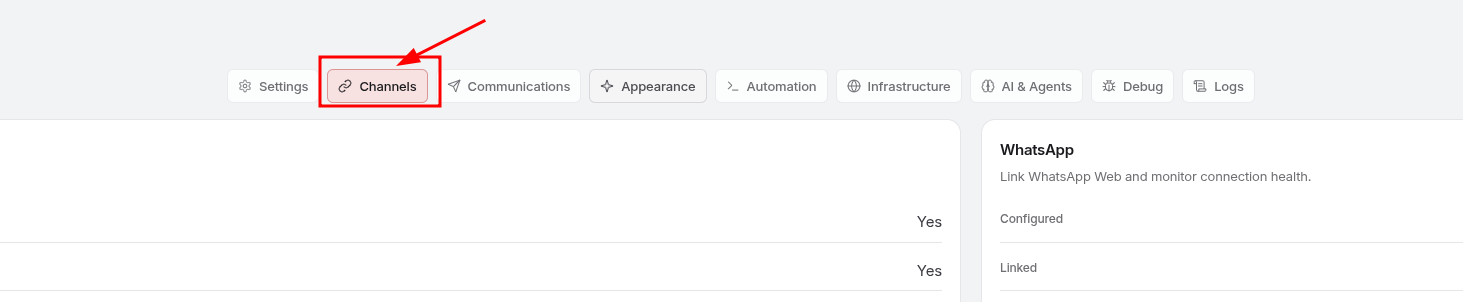
Complete only the optional channel checks that apply to your deployment.
Step 8: Optional Telegram Check
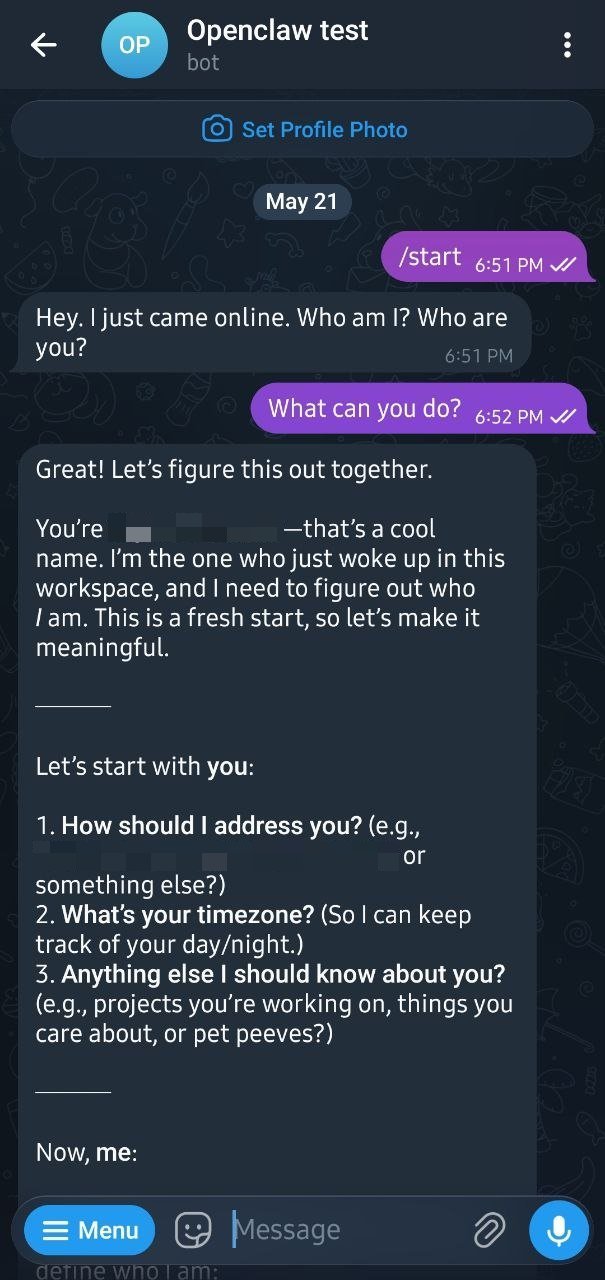
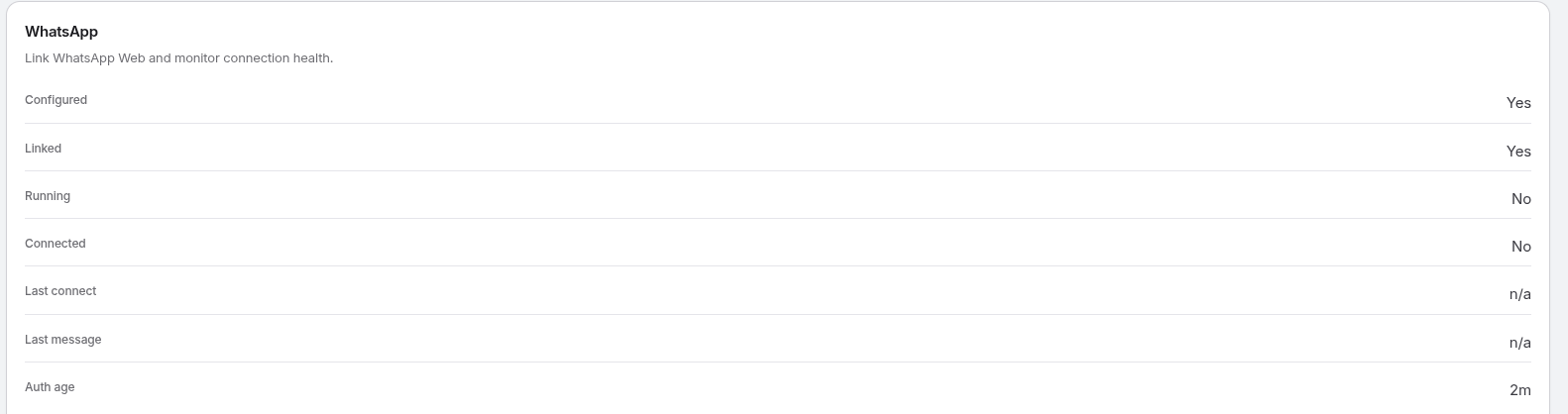
If Telegram was enabled and the bot token is valid, Telegram should show Configured: Yes and Running: Yes.

Message the bot from the user ID listed in TELEGRAM_ALLOW_FROM.
Step 9: Optional WhatsApp Link
If WhatsApp is enabled, scroll to the WhatsApp section and click Show QR.
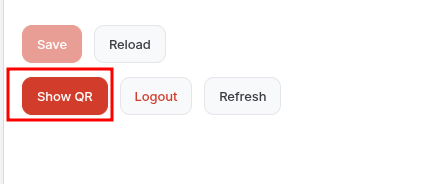
The QR code should appear after a short delay.
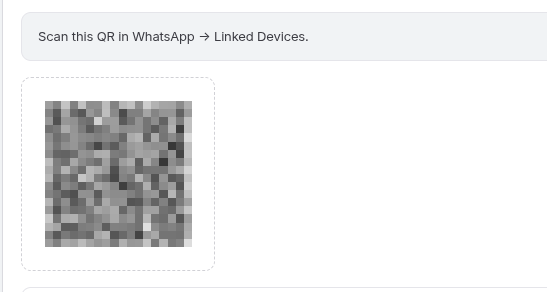
After the QR code appears, wait for the Wait for scan button to show, then click it before scanning.
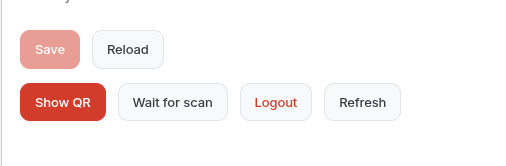
Open WhatsApp on your phone, go to linked devices, and scan the QR code. After scanning, click Refresh.
The WhatsApp channel should show Configured: Yes and Linked: Yes.
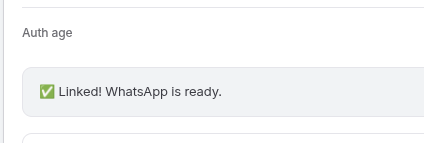
OpenClaw may also show a ready message after the account is linked.
Send a message from a number listed in WHATSAPP_ALLOW_FROM to the WhatsApp account linked to OpenClaw.
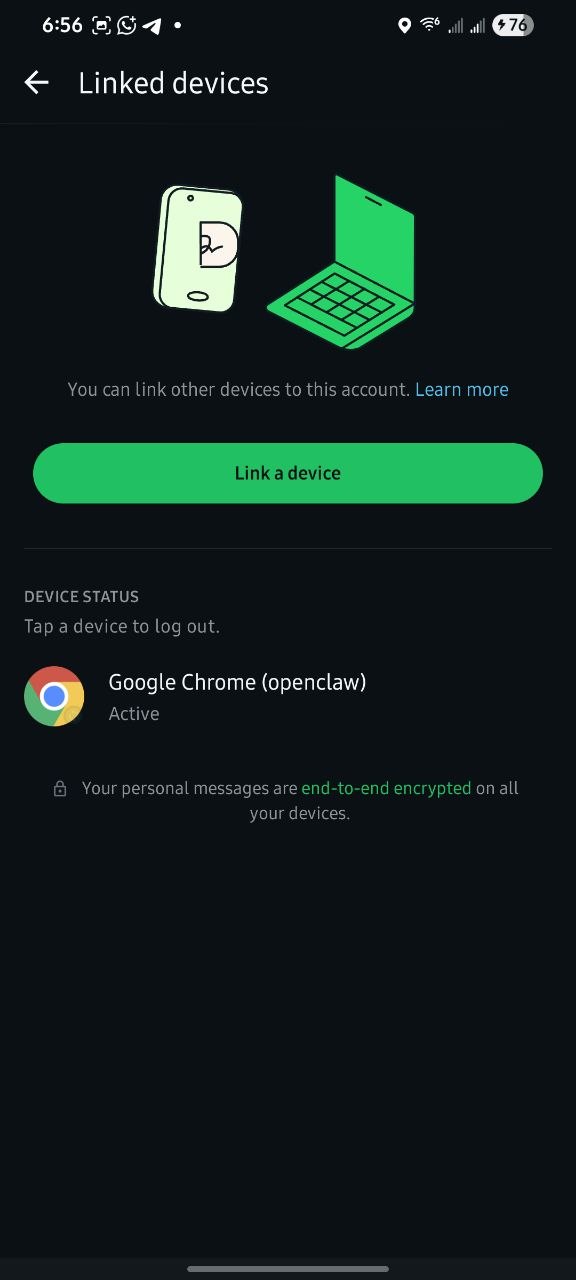
You can also confirm from WhatsApp that the OpenClaw session is listed as a linked device.
After sending a test message, OpenClaw should respond from the linked WhatsApp account.
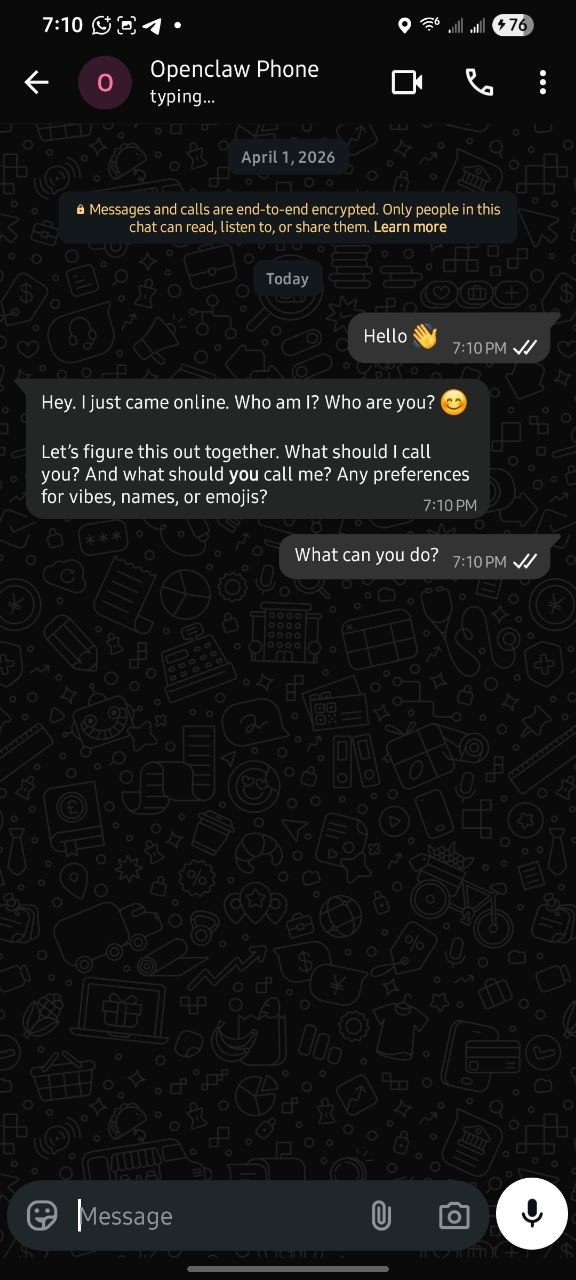
If the channel receives messages but the assistant does not reply, check whether your AI provider API key is valid and supports the selected model.
Troubleshooting
The UI does not open
- Confirm the deployment is Running.
- Confirm the deployment URL routes to port
8000. - Wait a few minutes after the first start. The bootstrap script installs OpenClaw before the gateway is ready.
Login fails
- Use the exact
OPENCLAW_GATEWAY_TOKENvalue from the deployment environment variables. - Check that
OPENCLAW_PUBLIC_ORIGINmatches the deployment URL. - Do not add a trailing slash to
OPENCLAW_PUBLIC_ORIGIN.
Provider errors
- Set only one provider API key unless you intentionally want OpenClaw to choose the first one it finds.
- Make sure
OPENCLAW_MODELuses the right provider prefix, such asmistral/,anthropic/,openai/,google/, oropenrouter/. - Check that the API key is active for the model you selected.
Telegram is not running
- Set
ENABLE_TELEGRAM=true. - Set
TELEGRAM_BOT_TOKEN. - Set
TELEGRAM_ALLOW_FROMwith square brackets and quotes, for example["123456789"]. - Save changes, then restart the deployment.
WhatsApp is not linked
- Set
ENABLE_WHATSAPP=true. - Set
WHATSAPP_ALLOW_FROMwith square brackets and quotes, for example["+1234567890"]. - Open Settings, then Channels, then use Show QR in the WhatsApp section.
- Scan from WhatsApp linked devices.
- Click Refresh after scanning.
Security Notes
- Keep all secrets in Saturn environment variables.
- Restrict
TELEGRAM_ALLOW_FROMandWHATSAPP_ALLOW_FROMto accounts you control. - Use a high-entropy
OPENCLAW_GATEWAY_TOKEN. - Review plugins before installation and keep only required channels enabled.
- Do not share screenshots of the WhatsApp QR code while it is active.
- Treat the deployment filesystem as temporary unless you attach persistent storage.
Why Saturn Cloud Over a Raw VPS
Most raw VPS guides require separate setup for TLS, routing, service management, environment variables, and lifecycle operations. The Saturn template puts those pieces behind one Deployment.
You get:
- Managed container environment
- Isolated container runtime
- Built-in environment variable management
- Template-based deployment
- Browser URL routing to the OpenClaw gateway
- Logs and lifecycle controls from the deployment page
Support Resources
- OpenClaw Docs: https://docs.openclaw.ai/
- Saturn Cloud Docs: https://saturncloud.io/docs/
Summary
To deploy OpenClaw on Saturn Cloud:
- Create a Deployment from the OpenClaw Beta template
- Set
OPENCLAW_GATEWAY_TOKEN - Set
OPENCLAW_PUBLIC_ORIGINto the deployment URL - Set one AI provider API key and, optionally,
OPENCLAW_MODEL - Enable Telegram or WhatsApp if needed
- Save changes and start the deployment
- Open the deployment URL and connect with the gateway token
- Check channel status in Settings, then Channels
- If Telegram is enabled, confirm it is running and message the bot
- If WhatsApp is enabled, link WhatsApp with the QR flow and send a test message